Chemistry Add-In for Microsoft Word

CML is Cool

  • Home
  • History
  • Download
  • Consultancy
  • Sponsors
  • Under the Hood
  • News
  • Shop
    • My account
    • Basket
  • Support ▾
    • Knowledge Base
    • Usage
    • FAQs
    • Tutorials

Chem4Word does not start

13th July 2020 by Mike Williams

If Chem4Word appears to be installed correctly but does not start, please verify that Chem4Word has not been disabled by Word.

Adobe Acrobat Pro has been known to prevent earlier versions (prior to V3.1.6) starting up and thus being disabled and once in this state it is “sticky” until manually unblocking it.

You can check this by going to word options.

Click on Add-Ins [1], select “Slow And Disabled Add-ins” [2], then click on Go
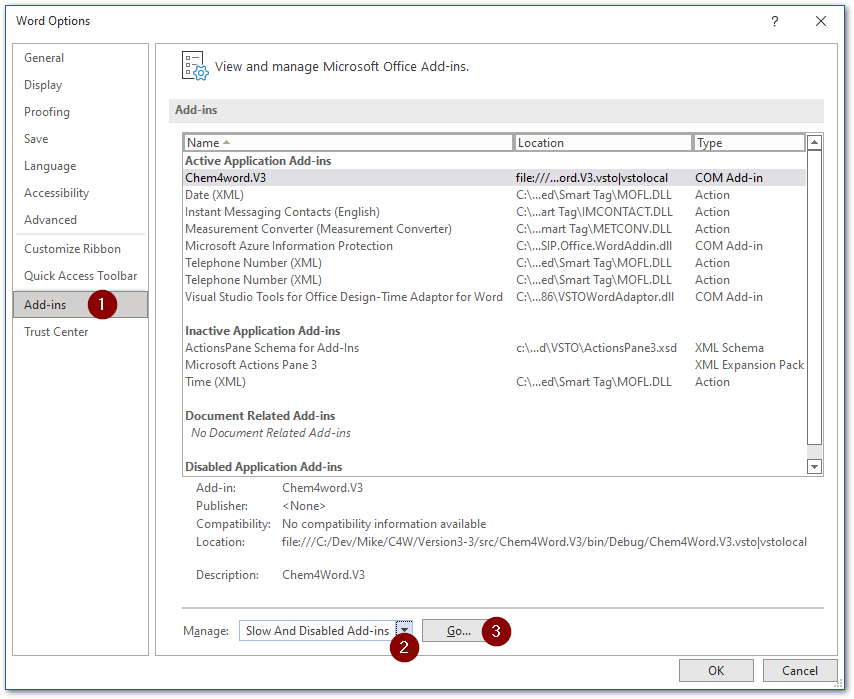
If Chem4Word is showing in this list please select it then click on enable.

It is also worth checking the list of Disabled Items as well select “Disabled Items” [2], then click on Go
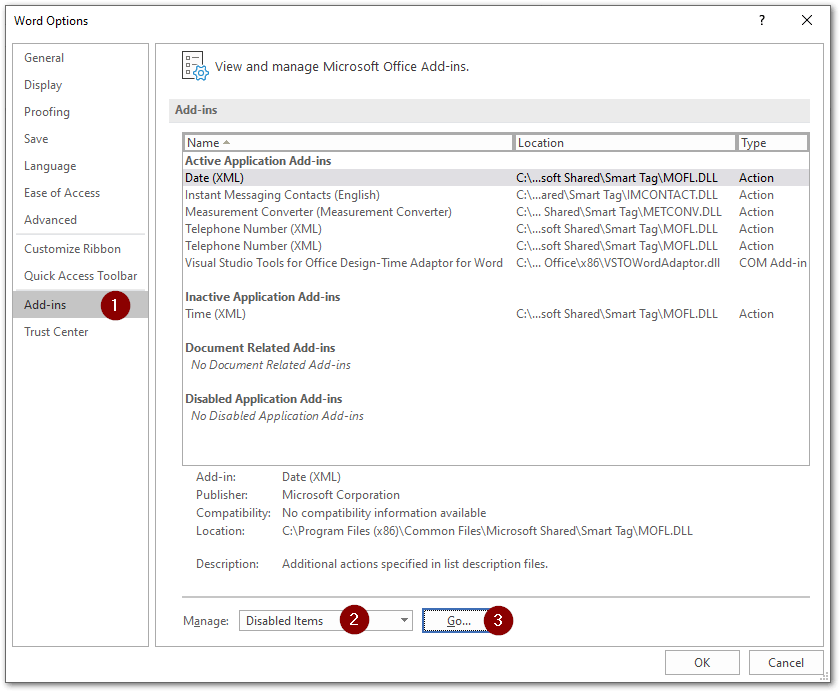
If Chem4Word is showing in this list please select it then click on enable, by clicking on steps and 5 as shown below.
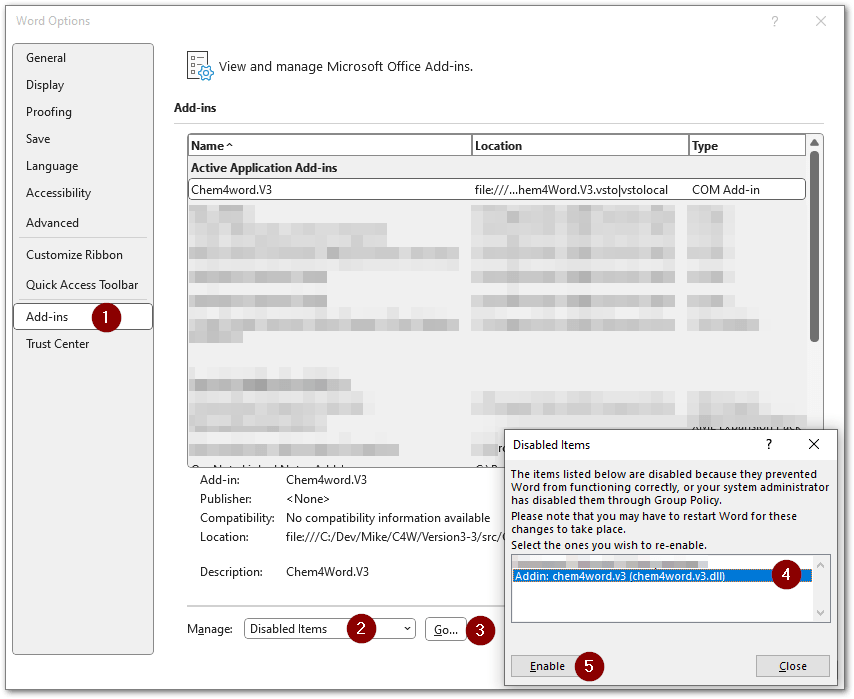
After re-enabling Chem4Word you may need to restart Word to get the Add-In fully working.

If all else fails we have a PowerShell script at Get-Back-To-Square-One.ps1 which you can run to force remove Chem4Word. NB: This will NOT alter any documents that have chemistry in them.

After this you should restart your computer, then re-install Chem4Word by downloading the lastest setup. Please see https://www.chem4word.co.uk/download/ for instructions.

Manual Uninstall of Chem4Word

10th November 2019 by Mike Williams

Version 3

Delete Registry Keys

HKEY_LOCAL_MACHINE\SOFTWARE\Microsoft\Office\Word\Addins\Chem4Word V3
HKEY_LOCAL_MACHINE\SOFTWARE\WOW6432Node\Microsoft\Office\Word\Addins\Chem4Word V3
HKEY_CURRENT_USER\Software\Chem4Word V3

Delete Folders

C:\Program Files (x86)\Chem4Word V3
C:\ProgramData\Chem4Word.V3
C:\Users\Owner\AppData\Local\Chem4Word.V3

Version 2

Delete Registry Keys

HKEY_LOCAL_MACHINE\Software\Microsoft\Office\Word\Addins\Chemistry Add-in for Word
HKEY_LOCAL_MACHINE\Software\WOW6432Node\Microsoft\Office\Word\Addins\Chemistry Add-in for Word
HKEY_CURRENT_USER\Software\Chem4Word

Delete Folders

C:\Users\Owner\AppData\Local\Chemistry Add-in for Word

ChemDoodle Web 8.0.0 Error in WebBrowser.InvokeScript

14th November 2018 by Mike Williams

The ChemDoodle Web 8.0.0 editor requires Internet Explorer 11.

This error has only been seen on PCs which are not running Windows 10.

There are a couple of ways to fix this :-

  1. Upgrade to IE11
  2. Switch to using the ChemDoodle Web Editor 7.0.2, which requires Internet Explorer 9 or above.

If you have IE11 and are getting this error it may be due to corrupted ChemDoodlw Web settings.

To reset them:-

  1. Click on the “Options” button on the Chemistry Toolbar
  2. Select the “Maintenance” tab
  3. Click on the top “Open” button to open the settings folder
  4. Delete files (if present) :-
    Editor.html
    Chem4Word.js
    Chem4Word.css
    ChemDoodle-Web-702.txt
    ChemDoodle-Web-800.txt
  5. Delete the folder (if present) :-
    ChemDoodleWeb

Assembly System.Data is missing

13th November 2018 by Mike Williams

Could not load file or assembly ‘System.Data, Version=4.0.0.0, Culture=neutral, PublicKeyToken=b77a5c561934e089’ or one of its dependencies. The module was expected to contain an assembly manifest.

This error is caused by an missing file (which is part of the .Net Framework) on your computer.

It most likely happened durung the un-installation of another program, which has incorrecltly removed the file.

Microsoft have a tool which should be able to repair your installed version of the .Net Framework.

This can be downloaded from https://www.microsoft.com/en-gb/download/confirmation.aspx?id=30135

Font Arial Regular is missing

3rd November 2018 by Mike Williams

Exception Font ‘Arial’ does not support style ‘Regular’.

This error is caused by an missing font file on your computer.

It most likely happened durung the un-installation of another program, which has incorrecltly removed the file.

Easiest way to fix this is to copy the font files from another computer

  1. Steps to copy the font from one computer to another
  2. Click on Start.
  3. Go to Control Panel.
  4. Click on Fonts.
  5. Select Arial fonts and copy it to your flash drive.
  6. Put the flash drive to the computer where the font is corrupted and paste it under Fonts folder.
  • « Previous Page
  • 1
  • 2

Recent Posts

  • Chem4Word – V3.3.10 Release 8
  • Why Should I Use Chem4Word?
  • SketchEl file support now included in V3.3
  • Improved Chemical Libraries are live in Chem4Word!
  • Draw Chemical Reactions Easily and Quickly with Chem4Word!

Archives

  • February 2025
  • July 2023
  • June 2023
  • March 2023
  • December 2022
  • November 2022
  • October 2022
  • March 2022
  • September 2020
  • August 2020
  • December 2018
  • April 2017
  • January 2017
  • December 2016
  • September 2016
  • December 2015
  • Privacy Policy – Chemistry Add-In for Microsoft Word
  • About Us
  • Contact Us
  • Cookie Policy (UK)

Copyright © 2026 · "Supported by the .NET Foundation" · Log in

Manage Cookie Consent
We use technologies like cookies to store and/or access device information. We do this to improve browsing experience and to show (non-) personalised ads. Consenting to these technologies will allow us to process data such as browsing behaviour or unique IDs on this site. Not consenting or withdrawing consent, may adversely affect certain features and functions.
Functional Always active
The technical storage or access is strictly necessary for the legitimate purpose of enabling the use of a specific service explicitly requested by the subscriber or user, or for the sole purpose of carrying out the transmission of a communication over an electronic communications network.
Preferences
The technical storage or access is necessary for the legitimate purpose of storing preferences that are not requested by the subscriber or user.
Statistics
The technical storage or access that is used exclusively for statistical purposes. The technical storage or access that is used exclusively for anonymous statistical purposes. Without a subpoena, voluntary compliance on the part of your Internet Service Provider, or additional records from a third party, information stored or retrieved for this purpose alone cannot usually be used to identify you.
Marketing
The technical storage or access is required to create user profiles to send advertising, or to track the user on a website or across several websites for similar marketing purposes.
  • Manage options
  • Manage services
  • Manage {vendor_count} vendors
  • Read more about these purposes
View preferences
  • {title}
  • {title}
  • {title}