Reaction Drawing
This is first of a series of simple guides to getting the best from Chem4Word.
Below is a video, we have produced, to demonstrate the subject of this post.
For now, you cannot download reactions or load them from libraries. So, you must draw reactions yourself.
Chem4Word makes this very easy! You can draw a reaction like drawing any chemistry.
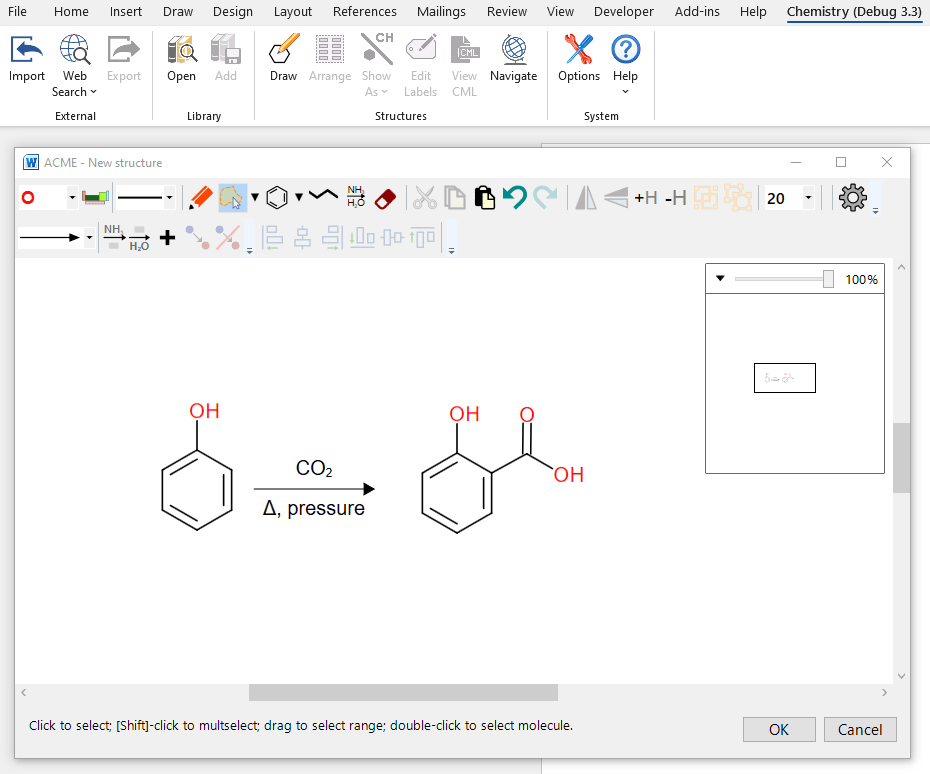
Use ACME to draw reactions. Start by drawing out the reactants and products.
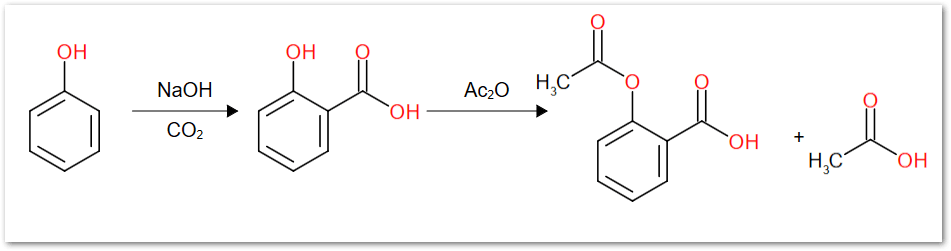
Here, I’ve chosen the Kolbe-Schmitt reaction. This is the first step in making aspirin. Carbon dioxide reacts with phenol and sodium hydroxide under pressure and salicylic acid is the product. It’s the first step in this scheme:
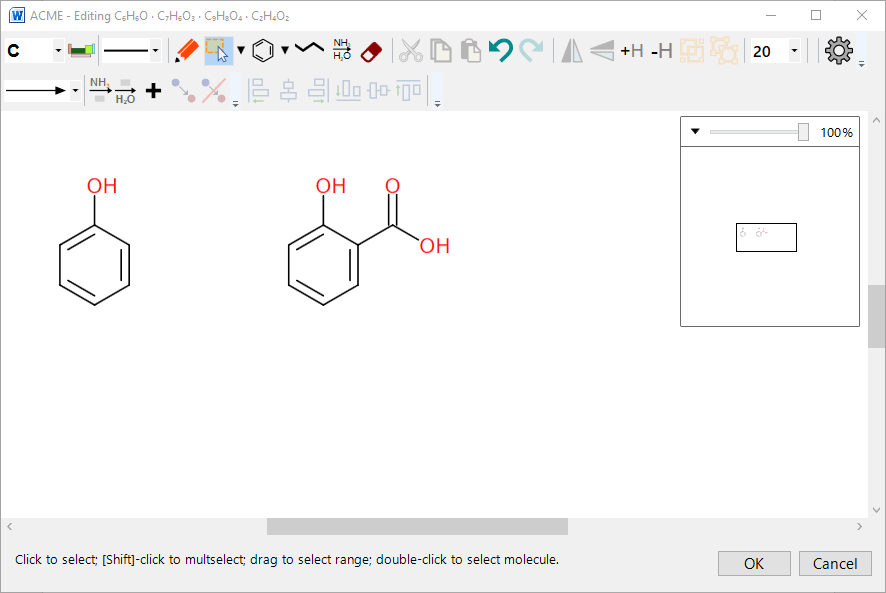
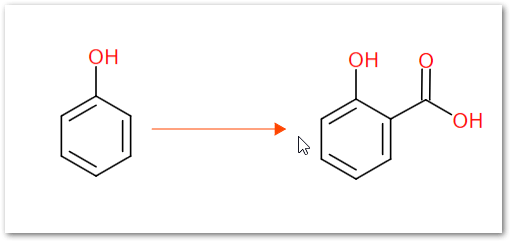
Use ACME to draw the phenol reactant and salicylic acid product. You can save time by cutting and pasting the phenol skeleton:
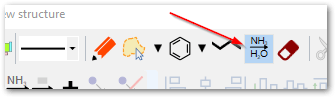
The next step is to draw a reaction arrow. The reaction arrow button on the toolbar puts ACME into arrow drawing mode:
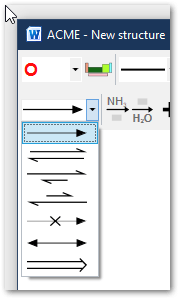
The reaction toolbar below allows you to choose an arrow type from the dropdown. I’ve left it as the standard reaction arrow for now. Click the dropdown to display all the arrow types:
Click and drag to draw an arrow
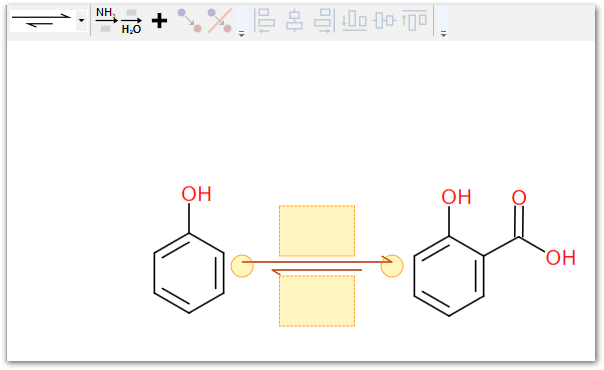
You can change the arrow type by clicking on it to select it, then choosing a new arrow from the dropdown:
You’ll have noticed the orange blocks that appear above and below the arrow. These contain the reagents and conditions.
By convention, reagents are placed above the arrow, and conditions below it. ACME doesn’t enforce this rule so you can put them where you like.
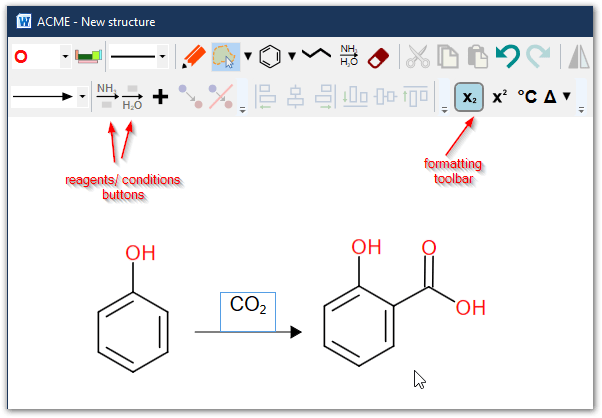
You can type in these blocks in one of two ways:
ACME switches to editing the reagents/conditions: you can type whatever you wish into this box.
Use the formatting/special characters toolbar to add superscripts, subscripts or special symbols.
N.B: any text typed into either of these fields is stored as simple formatted text. ACME makes no attempt to ‘semanticise’ the text into reagents, solvents or other chemical entities.
Chances are, your drawing now looks a little wonky, since ACME uses free placement of structures and other objects.
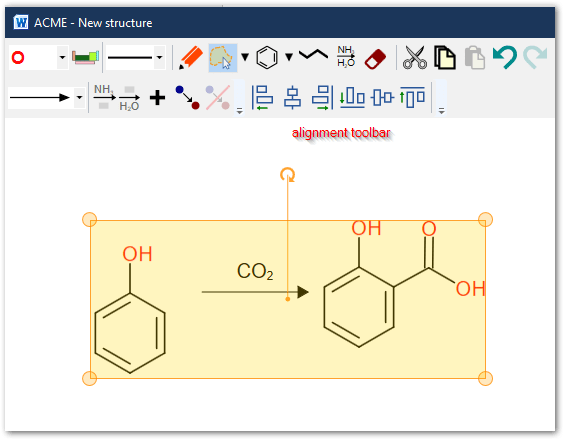
No worries! We’ve added special alignment tools to neaten your drawings. You can align to tops, bottoms, right or left edges, or middles of the objects.
To align:
Select the objects you want to align. ACME now enables the Alignment toolbar.
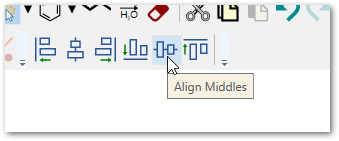
Now click the Align Middles button
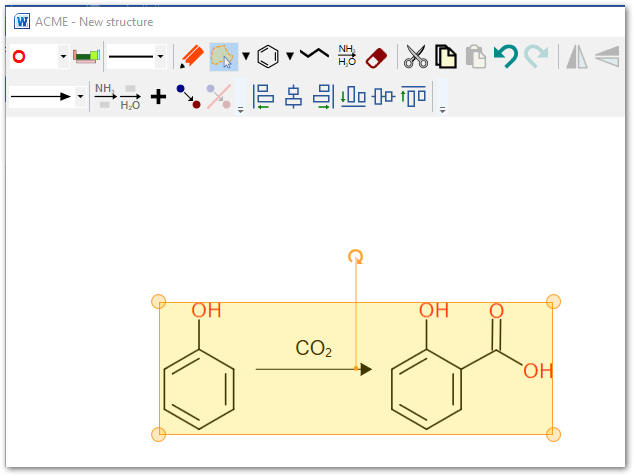
ACME aligns the vertical centres of all objects
You can align bottoms, tops or edges if you wish using buttons from the same toolbar.
Well done! You have just drawn your first reaction in Chem4Word!
Please contact us if you have any constructive suggestions!
What’s in a name? That which we call a rose by any other name would…
Our new Named Reactions Library is coming along nicely. We've just clocked 100 named reactions…
Reaction mechanisms are a pivotal teaching tool, conveying exactly how and why organic reactions work…
With this release we have added the following changes New Feature: Showing of Implicit Hydrogen…
It's a valid question. After all, there are now lots of chemical content creation tools.…
To celebrate WebMolkit having its license changed to Apache 2.0 we are working on allowing…